The following window is displayed to show detailed information about an image used to display in various views:
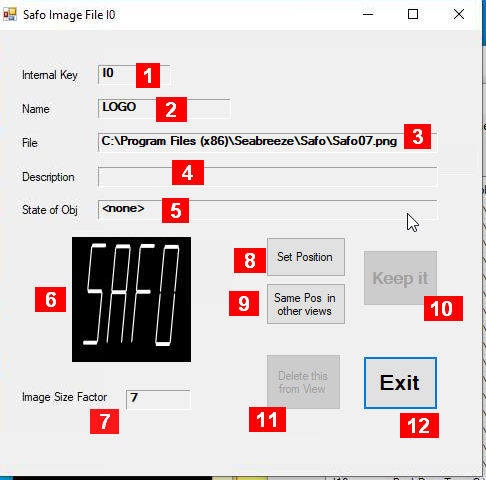
Details about the fields in this panel:
-
Internal Key – a unique identifier maintained by the system
-
Name – an acronym maintained by the user
-
File – file where the image resides
-
Description – some information maintained by the user
-
State of Obj – Reference to an object which state can determine which frame should be displayed (animated gif)
-
An image showing how it looks like (this is distorted here to fit in the available space of a square)
-
Image Size Factor – the size of the image the image in the destination view is going to have
-
Set Position – activates the main window with grid lines, where you can place this object on any free square grid element with a mouse click (hit <ESC> there when done to return)
note: as long as the grid lines appear on the main window , you can return to the main window and repeat the placement again. This will stay active until you hit the “Keep it” button, close this window, or you activate this feature for a different object. (1) -
Same Pos in other views: allows to place the same object in other views,(1)
-
Keep it: the object’s position is now fixed (removing the grid lines on the main window). Without it it can still be changed on the main windows even though you may have done other things. (1)
-
Delete this from View
-
Exit – closes this window.
Notes:
-
For more information see here.