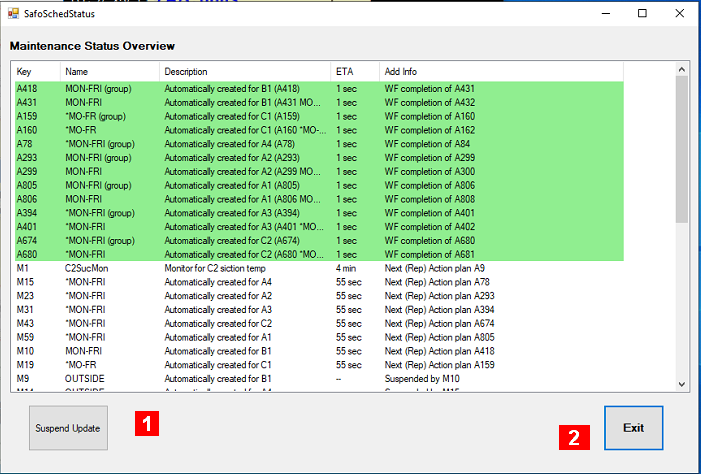
This window shows the current activities driven by the scheduler. It is updated every second.
The buttons are as follows:
-
Suspend Update – to stop the refresh every second to allow to enable or disable any particular maintenance schedule via right click on a line via the mouse button
-
Exit – to close this window.
The columns indicate the following:
-
Key – the internal key of the maintenance schedule being processed
-
Name – the name of the maintenance schedule
-
Description – the contents of the description field of the maintenance schedule
-
ETA – the amount of wait time before the next action takes place – or “disabled” (1) or “inactive”
-
Add Info – what it is waiting for or some other information.
The lines have a green back ground if an active action plan is involved for which the schedule is typically waiting for some completion, and a red back ground if the maintenance plan is deliberately disabled.
The Add Info can have one of the following contents:
-
WF completion of Axxx : Indicated Action Plan waits for timeout or response (back ground is green)
-
Timeout : Just a timeout without any special action (back ground is green)
-
Waiting for Endtime – the Maintenance Schedule is just waiting for the end time (since there is no repeater action plan)
-
Next (Rep) Action plan Axxx – if the Maintenance Schedule has a repeater action plan, is is shown here
-
Not yet started – the start time of the maintenance schedule is later
-
Suspended by Mxxx – this current Maintenance Schedule is superseded by the shown Maintenance Plan – a typical situation for so-called “Outside” schedules
-
Finished – this plan has expired
-
inactive this weekday – this plan is not supposed to run on current weekday
-
via opmode – all scheduled activities are supended via opmode
-
also inactive via opmode (1) – this disabled plan would not run because of the opmode
-
Right click on line to re-enable (1) – this disabled plan could be reactivated.
Notes:
-
Lines with disabled Schedules have a red background