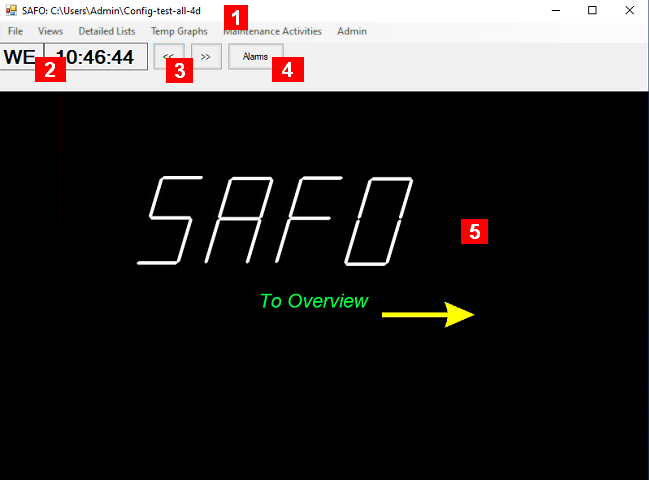
The Main window of SAFO will look like this:
-
Title Bar – shows file name of the current configuration file, or <NEW> in case of read problems or first time use. The name is flanked with “*” on both sides if some data have been modified and not saved yet.
-
Weekday and Time (in 24-hour military time) (1)
-
Buttons to control the access level of SAFO to the database and scheduling (1)
-
Alarm button to view outstanding alarms (red is new alarms not yet acknowledged)
-
Configurable View area
Upon start SAFO will automatically load the last used configuration file. The immediate actions depend on the operation mode (1)
The menu consists of the following items and sub items
-
File
-
Load – To load a different configuration file than the one currently loaded
-
Save – To save the current configuration file as shown in the title bar
-
SaveAs – To save the current data into a different file, which will then become the current configuration file
-
Save New Version – To save the current data into a new version of the current configuration file – more here
-
-
Views – To select different views / aspects to be shown in the view area of main window. Displayed only if more than one view is defined
-
Detailed Lists – To view and administer all kind of data at the lowest detail – more here
-
Temp Graphs – Gives access to graphs of collected temperature values. For more information see here.
-
Maintenance Activities – To view the performance of current active schedules – more here
-
Admin – some additional setups and tools – more here
Note
-
For supported operation modes see here.
To move around in the view area of the main window to have a closer look at any particular part of it you can do one of the following:
-
Navigation using Dragging:
You can re-position and zoom in or out the view by dragging the mouse. Move the mouse pointer to an empty area.
To shift the territory, click and hold the left mouse button. Move the mouse pointer in any direction you desire while holding down the button. When done release the mouse button and the view will be displayed in the new position.
To zoom in and out of the view, click and hold the right mouse button. Move the mouse pointer up or down to zoom out or in, respectively, while holding down the button. When done release the mouse button, and the view will be zoomed in or out. Note: the focal point of the zoom is always the center of the screen independent of the mouse pointer position.
-
Navigation using Mouse Wheel:
You can also use the mouse wheel to zoom in or out. Zooming using the mouse wheel sets the focal point for the zoom at the current mouse pointer location.
Tip: With the mouse wheel you can re-position the view within the display by positioning the mouse pointer at the opposite area where you want to re-position to when zooming out, and over the area you want to have a closer look at when zooming in. This is especially useful if you place an image of an object via the “Set on place” function. The mouse buttons are used to place the object and therefore cannot be used for navigating around.